How to Save Gmail Attachments to Google Drive Automatically
Some links may be affiliate links. If you buy through them we may earn a commission, at no extra cost to you. We only recommend tools we have tested.
Invoices from suppliers, receipts, signed contracts, client briefs… If they only live in your inbox, finding them at tax time is painful. In this guide you’ll set up a free automation that copies every attachment from chosen emails into a Google Drive folder, renamed with the date, without paying for Zapier or Make.
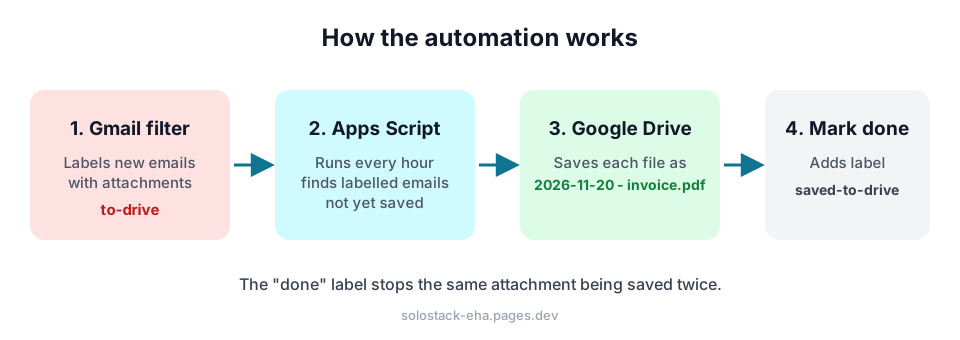
What you’ll build
Step 1: Create the two Gmail labels
In Gmail, scroll the left sidebar → Create new label:
to-drive: emails whose attachments you want savedsaved-to-drive: the script adds this after saving, so nothing is saved twice
Step 2: Create a Gmail filter (so it’s automatic)
- Click the search options icon in the Gmail search bar.
- Fill in what identifies the emails, for example From:
billing@yoursupplier.comor Has the words:invoice OR receipt. - Tick Has attachment, then Create filter.
- Choose Apply the label: to-drive → Create filter.
Tip: Tick “Also apply filter to matching conversations” to label your existing emails too.
Step 3: Get your Drive folder ID
Create a folder in Google Drive (e.g. Invoices 2026) and open it. The URL looks like:
https://drive.google.com/drive/folders/1AbCdEfGhIjKlMnOpQrStUvWxYzThe part after /folders/ is the folder ID. Copy it.
Step 4: Add the script
Go to script.google.com → New project, delete the sample code and paste:
const SOURCE_LABEL = 'to-drive';
const DONE_LABEL = 'saved-to-drive';
const FOLDER_ID = 'PASTE_YOUR_FOLDER_ID_HERE';

function saveAttachments() {
  const folder = DriveApp.getFolderById(FOLDER_ID);
  const done = GmailApp.getUserLabelByName(DONE_LABEL)
            || GmailApp.createLabel(DONE_LABEL);

  const query = `label:${SOURCE_LABEL} -label:${DONE_LABEL} has:attachment`;
  const threads = GmailApp.search(query, 0, 50); // 50 per run keeps it fast

  for (const thread of threads) {
    for (const msg of thread.getMessages()) {
      const date = Utilities.formatDate(
        msg.getDate(), Session.getScriptTimeZone(), 'yyyy-MM-dd');
      const files = msg.getAttachments({ includeInlineImages: false });
      for (const file of files) {
        folder.createFile(file.copyBlob()).setName(`${date} - ${file.getName()}`);
      }
    }
    thread.addLabel(done);
  }
}
Replace PASTE_YOUR_FOLDER_ID_HERE with your folder ID and click Save. Name the project something like “Gmail to Drive”.
Step 5: Run it once and authorise
- Select
saveAttachmentsin the function dropdown and click Run. - Google asks for permission to read Gmail and write to Drive. Click Review permissions, choose your account, then Advanced → Go to Gmail to Drive (unsafe) → Allow.
The “unsafe” wording only means the script was written by you and not verified by Google. It runs only inside your account. Read the code above and you’ll see it does exactly one thing.
Check your Drive folder: you should see files named like 2026-11-20 - invoice-1043.pdf.
Step 6: Schedule it
In the Apps Script editor click the clock icon (Triggers) → Add Trigger:
| Setting | Value |
|---|---|
| Function | saveAttachments |
| Event source | Time-driven |
| Type | Hour timer |
| Interval | Every hour |
Save. From now on, new matching emails land in Drive within an hour.
Useful extensions
- Only PDFs: wrap the save line in
if (file.getContentType() === 'application/pdf') { … }. - Skip tiny images (email signatures): add
if (file.getSize() < 20000) continue;before saving. - Monthly sub-folders: create or find a folder named with
yyyy-MMand save into that instead.
Troubleshooting
| Problem | Fix |
|---|---|
| “Exception: No item with the given ID” | The folder ID is wrong, or the folder belongs to another account |
| Nothing is saved | Check the email has the to-drive label and a real attachment (not an inline image) |
| Duplicate files | Make sure the saved-to-drive label exists and the search query is unchanged |
The bottom line
Fifteen minutes of setup gives you a searchable, dated archive of every invoice and receipt, ready for your accountant. Pair it with automatic invoice reminders and two of the most tedious admin jobs run themselves.
Frequently asked questions
Does this work with a free Gmail account?
Yes. Google Apps Script is free for personal Gmail accounts and for Google Workspace. Free accounts have lower daily quotas, but saving a few dozen attachments a day is well within them.
Will it save attachments from old emails?
Only from emails that have the source label. To process old emails, search for them in Gmail, select them and apply the label manually. The script will pick them up on its next run.
Can I save to different folders per client?
Yes. Create one label per client and run a copy of the function for each label and folder ID, or extend the script with a small label-to-folder map.
Keep reading
Automatic Invoice Reminders with Google Sheets (Free, No Zapier)
Send polite overdue-invoice reminder emails automatically using Google Sheets and a short Apps Script. Free, takes 15 minutes, copy-paste code included.